Photo editing just changed forever. AI now erases tourists, rebuilds skies, and dreams up new scenes while you sip coffee—no tedious masking required.
We tested dozens of 2026 editors, scoring them on AI quality, speed, ease of use, price, and licensing clarity. Seven stood out—from web-based Leonardo AI to desk-staple Photoshop. Some are free; others justify a subscription with studio-grade control. Before we rank them, here’s the method behind our picks.
How we picked the seven stand-out editors
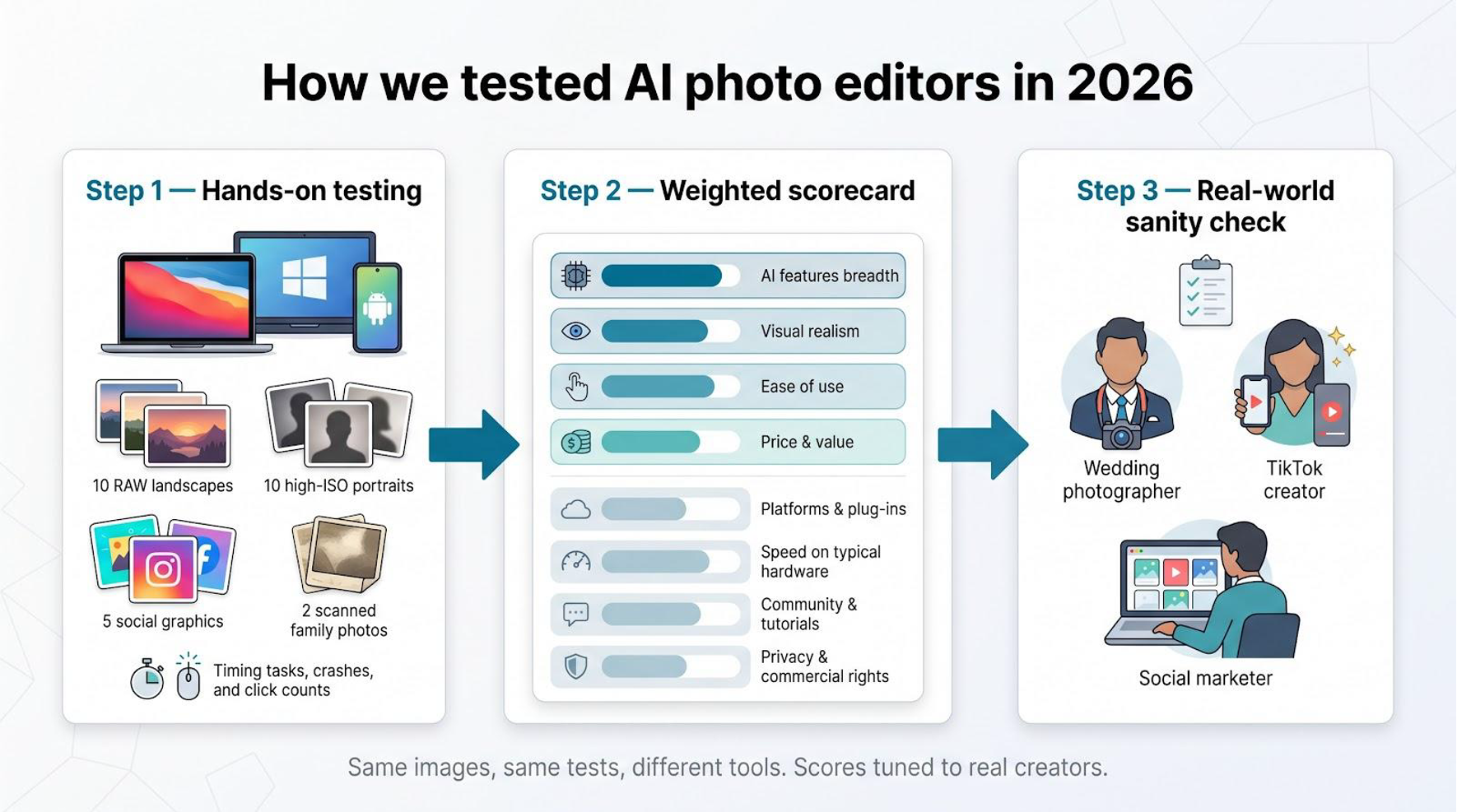
A solid process beats a hunch. Before we named any winners, we built a scoring sheet and ran every serious contender through identical tests.
First, we installed or signed in on three devices (a MacBook Pro, a mid-spec Windows laptop, and an Android phone) so hardware quirks could not skew the results. Each tool handled the same set of images: ten RAW landscapes, ten high-ISO portraits, five social graphics, and two badly scanned family photos. We timed common tasks, watched for crashes, and counted the clicks needed for a clean result.
Then came the scorecard. Eight factors carried weight:
- Breadth of genuine AI features
- Visual quality and realism
- Ease of use for a new user
- Price and long-term value
- Platform reach and plug-in options
- Processing speed on typical hardware
- Community help and tutorials
- Clarity on data privacy and commercial rights
We weighted the first four most heavily because great AI means little if the output looks fake or the price stings.
Numbers alone never tell the full story, so we also read release notes, Reddit threads, and official docs. That qualitative layer revealed hidden perks such as offline processing in Luminar and deal breakers like watermark limits on free plans.
Finally, we sanity-checked the scores against real-world personas. A wedding photographer needs different magic than a TikTok creator. The seven editors you will meet next cover that range without overlap, giving you a focused menu instead of a buffet of duplicates.
Quick comparison: seven editors at a glance
Before we dive into each tool, the table below lines up the core facts so you can spot deal breakers or pleasant surprises in seconds.
Scan the “Key AI tricks” column first. If a feature is not listed here, it is not in the app. Next, check price. A free tier can be useful, but watch for catches such as resolution caps or daily credit limits.
Finally, look at platforms. Cloud editors avoid hardware headaches, while desktop software keeps your files offline. Choose the trade-off that matches your workflow, then continue for the detailed scores.
| Editor | Best for | Platforms | Key AI tricks | Free tier | Entry price* |
| Leonardo AI | All-around generative editing | Web | Inpainting, outpainting, upscaling, custom models | Yes | From $12/mo |
| Adobe Photoshop | Precise professional work | Win, Mac | Generative Fill, Expand, Neural Filters | Trial only | $22.99/mo |
| Luminar Neo | One-time buy power for photographers | Win, Mac | Sky swap, Relight, GenErase, GenExpand | No | $119 lifetime |
| Topaz Photo AI | Noise removal and 6× upscaling | Win, Mac | Denoise, Deblur, Gigapixel, Face Recovery | No | $199/yr |
| Canva | Fast social graphics | Web, iOS, Android | Magic Edit, Magic Eraser, design templates | Yes | $15/mo Pro |
| Pixlr | Free browser Photoshop-lite | Web, iOS, Android | BG remove, AI Retouch, beta text-to-image | Yes | $4.90/mo Premium |
| Picsart | Mobile creativity on the go | iOS, Android, Web | AI Replace, Enhance, Avatars | Yes | $12.99/mo Gold |
*Prices checked June 2026; promotions and regional taxes vary.
1. Leonardo AI: best all-around generative editor
Leonardo blends classic photo retouching with image generation. Open it in your browser, drop in a shot or start from a blank prompt, and you can erase distractions, expand the canvas, or invent new elements without touching a desktop install.
The experience starts fast. A clean workspace shows your image on the left and a prompt box on the right. Type “replace the dull sky with a golden sunset” or “add a vintage bike near the doorway,” press generate, and three variations appear in seconds. Because edits land on separate, rollback-friendly layers, you keep the version that nails the mood and discard the rest.
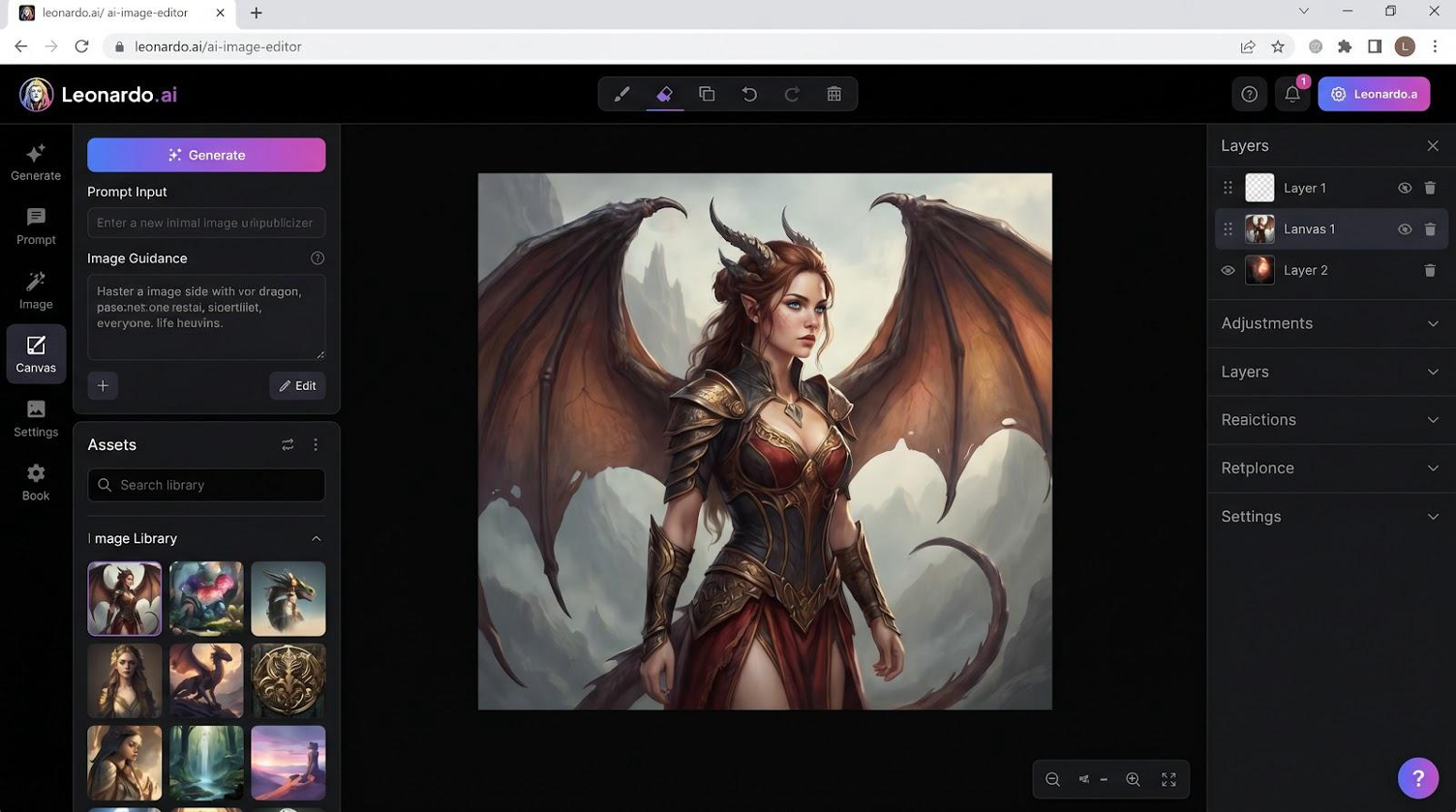
Leonardo AI browser workspace with prompt-based generative editing
Every account gets a daily pool of free tokens, so you can test real jobs before paying a cent. When you need higher resolution, priority queues, or custom model training, upgrade to a paid plan. That price agility beats flat subscriptions that start billing on day one.
Quality holds up under scrutiny. Leonardo taps fine-tuned Stable Diffusion models plus its own FLUX variants, which means sharper edges, cleaner hands, and fewer “AI tells” than earlier-gen tools. If an edit misfires, rerolling with a tweaked prompt usually fixes it—no manual masking required.
You also gain flexibility. The browser editor works on any OS, and power users can call the API to batch-process product shots or plug the editor into a larger workflow. A bustling Discord and template gallery shorten the learning curve; copy a proven prompt, tweak, and go.
There are trade-offs. Heavy cloud demand can slow queues for free users, and prompt crafting still involves trial and error. Deep typography tools and print-specific color management remain the domain of Photoshop.
If you want one tool that can both fix a photo and imagine entirely new visuals, without locking you into pricey monthly bills, start with Leonardo.
2. Adobe Photoshop: best for pixel-perfect professional work
Photoshop remains the heavyweight champ, now boosted by Firefly generative AI. Select an area, type a prompt such as “remove the crane” or “extend the ocean another twenty feet,” and the software blends new pixels into your layers so cleanly that no one can spot the join. Independent lab tests praise Generative Fill for matching lighting, texture, and perspective better than any rival.
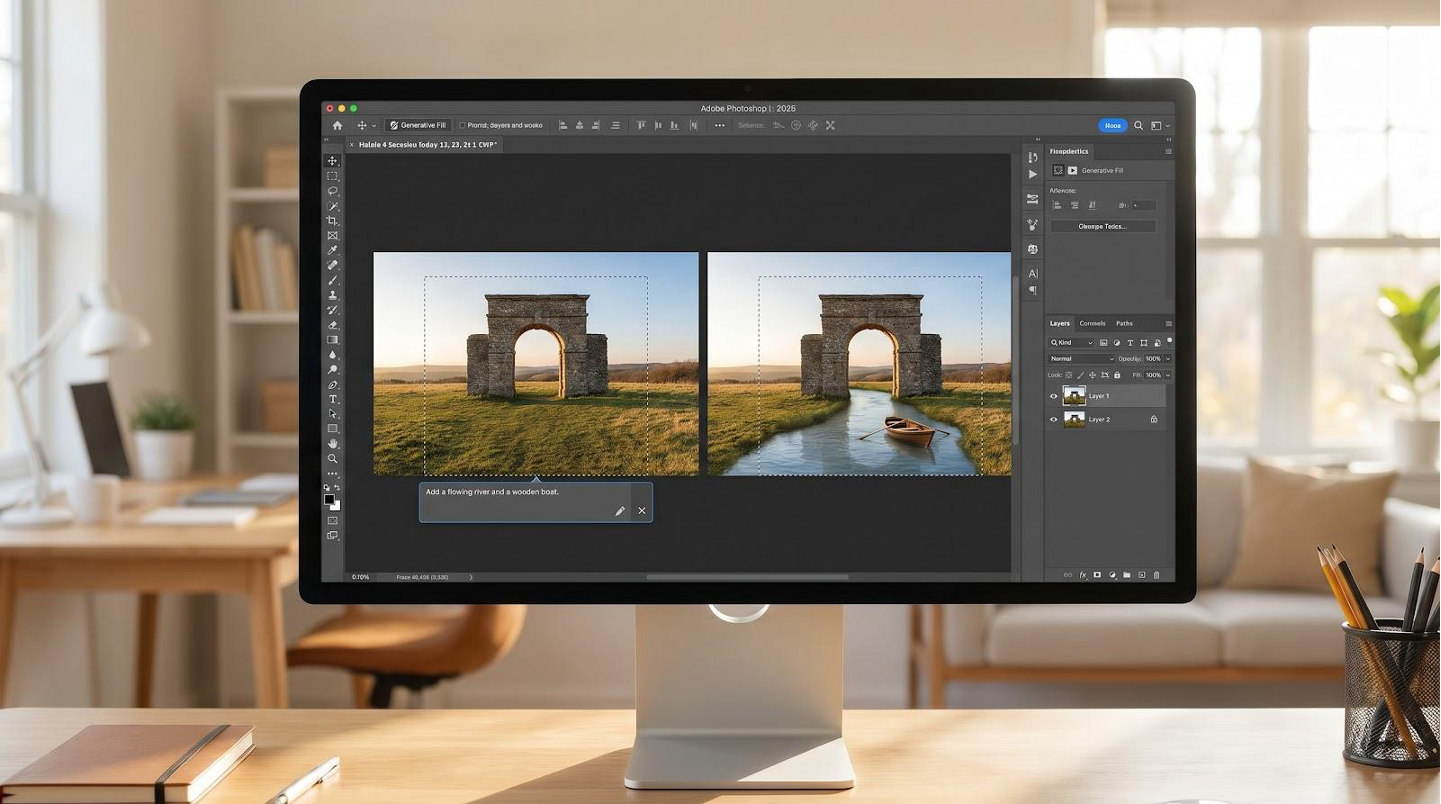
Adobe Photoshop Generative Fill interface for pixel-perfect edits
The power lives inside a familiar toolbox. You keep your masks, adjustment layers, and 16-bit color, then add AI when it speeds things up. Need to nudge a horizon after the AI pass? Grab the warp tool and refine. No exporting to a web app, no juggling file versions.
Photoshop’s biggest edge is workflow depth. Batch actions, Lightroom round-trips, and smart object stacks stay in place, while Firefly cuts hours off tedious tasks.
There are pain points. A Creative Cloud single-app plan starts at twenty-three dollars per month, and AI credits add soft caps if you generate images all day. The interface can overwhelm newcomers, and older laptops struggle with large generative tasks.
For agencies, studios, and solo pros who bill for perfection, those costs are easy math. When a client zooms to 400 percent and expects zero artifacts, Photoshop delivers. In short, it offers unrivaled control, industry credibility, and AI that fits established workflows. Nothing beats Photoshop when perfection matters.
3. Luminar Neo: best one-time purchase for photographers
Luminar feels purpose-built for shooters who would rather be in the field than buried in sliders. Open a RAW file, click Sky AI, and a washed-out sky becomes dramatic clouds while the foreground relights to match. Two clicks, instant impact.
New tools push even further. GenErase removes power lines or stray tourists, then rebuilds the missing pixels so naturally you forget they were there. GenExpand widens a tight composition, filling extra canvas with scenery that matches lens and lighting. It is Photoshop-grade magic wrapped in a friendlier package.
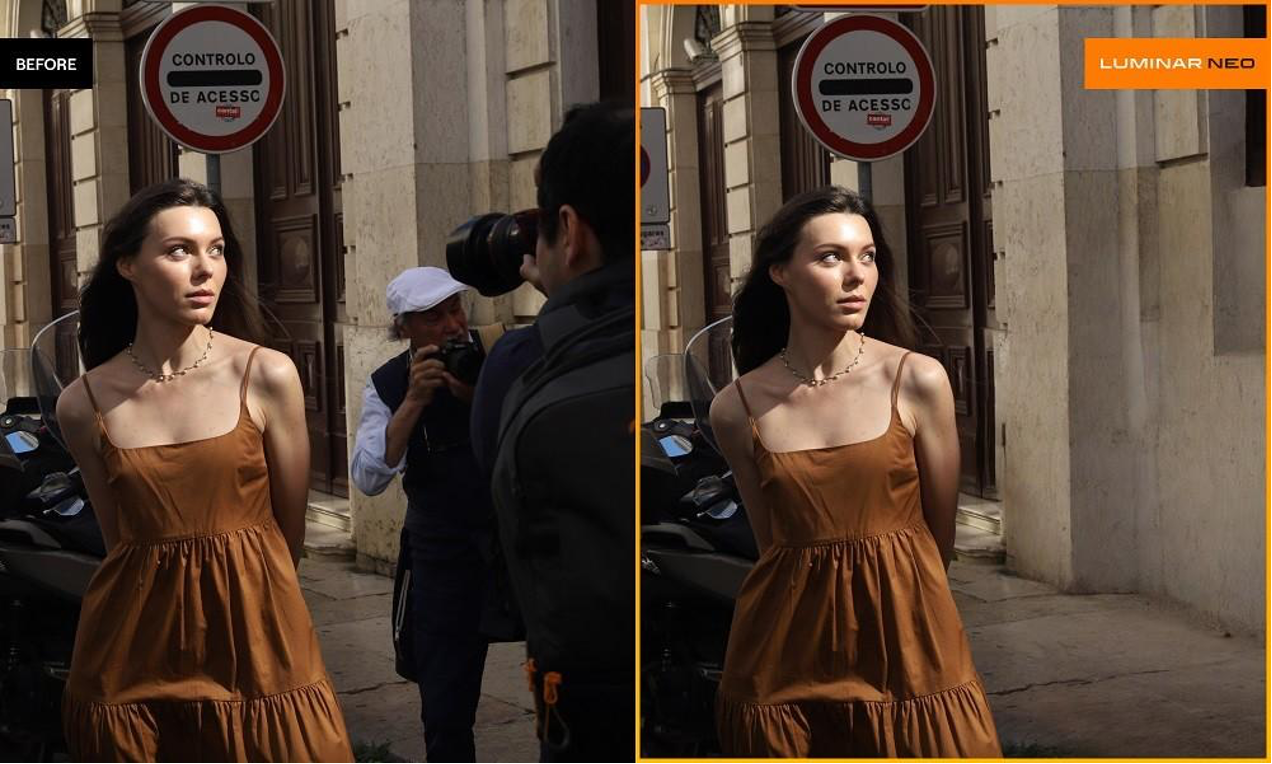
Luminar Neo GenErase and GenExpand official before-and-after example
Because Luminar runs entirely on your computer, privacy advocates relax and laptop editing stays quick. No uploads, no queues, just GPU muscle at work. The trade-off is hardware: an older machine can crawl on 100-megapixel panoramas, though batch mode lets you start a coffee break while portraits process.
Price seals the deal. Pay once, about one hundred twenty dollars, and you own the license. Updates arrive for a full year, and you decide if the next major version earns another purchase. For photographers drowning in monthly fees, that feels like stepping off a treadmill.
Shortcomings remain. Deep graphic-design tools are limited, and you will not find generative typography or 3D layers. Color specialists may also miss the granular curves in Capture One. Still, for ninety percent of everyday photo work—weddings, real estate, and landscapes—Luminar trims edit time to minutes and keeps cash in your pocket.
Shoot, load, enhance, export. If that rhythm matches your ideal Tuesday, Luminar Neo deserves a spot on your shortlist.
4. Topaz Photo AI: best for salvaging noisy or soft images
Sometimes the problem is not creativity; it is quality. High-ISO grain, motion blur, or a tight crop can ruin an otherwise perfect shot. Topaz Photo AI steps in as the specialist that rescues those files and makes them publication-ready.
Drop in a dark concert photo and watch Autopilot scan the file. It detects noise, softness, and subtle motion shake, then chooses the right blend of Denoise, Sharpen, and Gigapixel upscaling. One click later, the singer’s face is crisp and the background noise is gone; side-by-side comparisons rival painstaking manual retouch work.
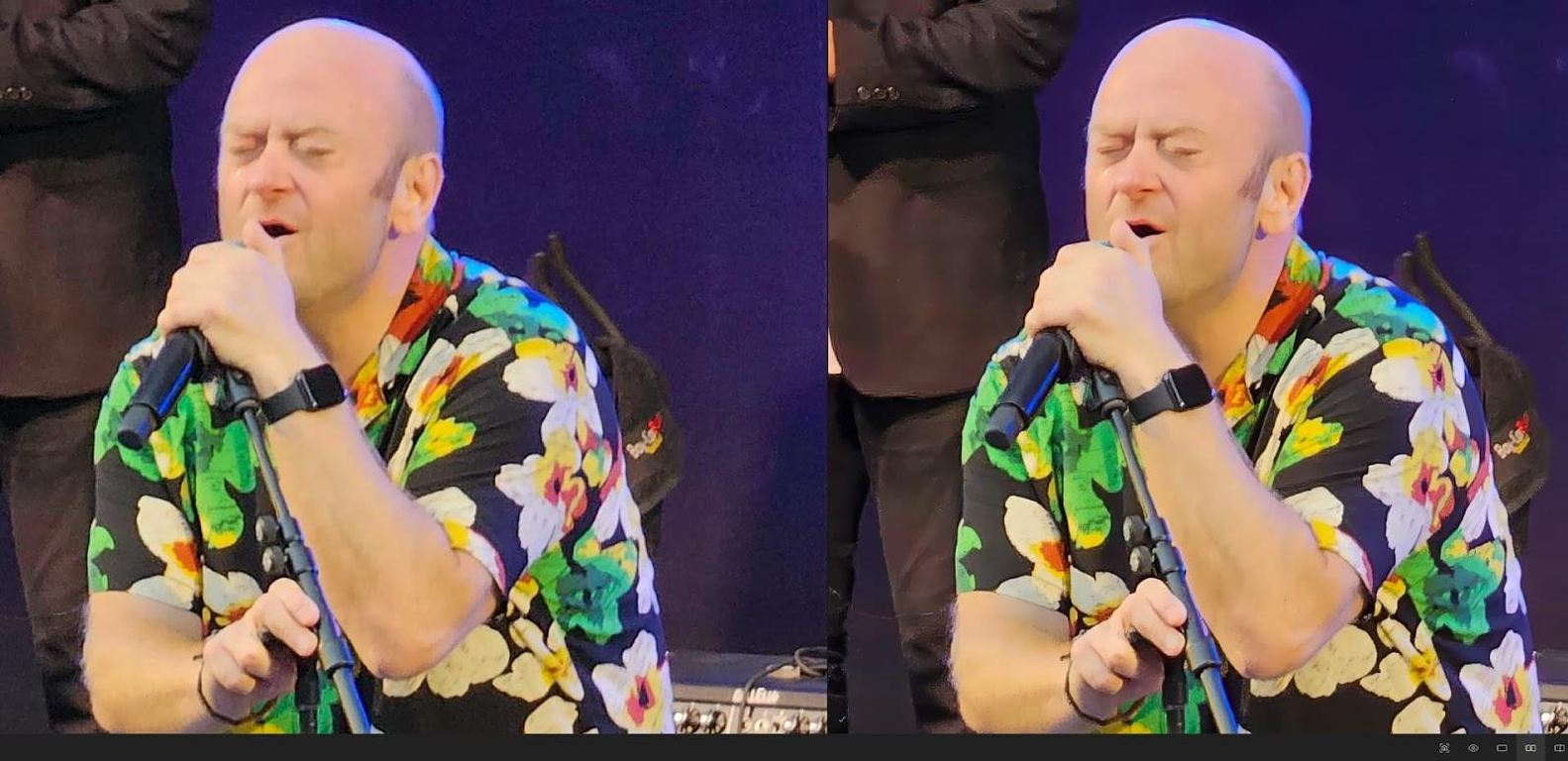
Topaz Photo AI Autopilot noise reduction concert photo before-and-after
Because all processing runs on your GPU, batch work is practical. Wedding shooters feed an entire reception folder, grab lunch, and return to images that look two stops cleaner. The interface stays lean: a before-and-after panel, a few strength sliders, and toggles to mask the effect to faces only.
Topaz now requires a subscription, about two hundred dollars per year. For pros who handle thousands of frames, that fee often pays for itself on the first job.
Limitations remain. The app focuses on repair, not creativity, so you will not remove objects or change skies here. Push the sliders too far and skin can turn plastic, so rely on the preview window for moderation.
When image quality stands between you and a paycheck, Topaz turns “almost” shots into portfolio keepers.
5. Canva: best for fast, design-ready social posts
Canva shines when speed matters more than pixel-level finesse. Open a template, drag in your photo, and the Magic Edit brush appears like a friendly helper. Circle an unwanted coffee cup, type “marble desk,” and seconds later the prop is gone, replaced by a surface that matches shadows and grain well enough for Instagram.
Magic Eraser handles simpler removals in one tap, while the built-in asset library drops backgrounds, stickers, and type treatments into the same canvas. Because everything runs in the browser or phone app, you can design a product teaser on the commute and publish before reaching the office.
The free tier is generous: thousands of templates plus limited daily AI edits. Upgrade to Pro for brand kits, bulk resize, and unlimited Magic Edit runs at fifteen dollars per month—useful if you manage several client accounts.
Drawbacks exist. Resolution tops out at social-media sizes on free, and even Pro files are not ideal for large print. AI fills sometimes miss tricky lighting, and no layer mask allows fine-tuning. Serious retouchers still need Photoshop.
For marketers, teachers, and small-business owners who need fresh visuals every day, Canva moves ideas from brain to feed in minutes.
6. Pixlr: best free browser-based editor with AI extras
Pixlr feels like a lightweight Photoshop that opens in any browser—no install required. Drag a photo onto the canvas and familiar layers, blend modes, and adjustment sliders appear alongside a growing set of AI buttons.
The star is Background Remover. One click turns a product shot into a clean PNG, hair strands intact more often than not. Pair it with the new AI Fill beta to drop your isolated subject into a fresh scene: type “warm wooden tabletop,” watch it appear under the layer, then adjust opacity or blur for realism.
Need speed over precision? Switch to Pixlr X, the beginner mode, and lean on auto-enhance, filters, and social-size templates. Hop back to Pixlr E when you need layer masks or the clone stamp.
Monetization stays mild. The core editor, background remover, and modest AI quotas remain free, funded by an ad banner. Five dollars per month removes ads and unlocks higher-resolution AI runs. Exports stay watermark-free, even on the free plan.
Limits appear on heavyweight jobs. A gigapixel panorama or a 50-layer composite can slow the browser, and AI Fill can miss complex lighting. Power users will outgrow it, but that is fine; Pixlr excels when you are on a borrowed laptop, need a quick cut-out, and cannot install software.
If “free, fast, and good enough” sounds right, keep Pixlr bookmarked.
7. Picsart: best mobile-first creative toolbox
Picsart lives on your phone, so edits happen the moment inspiration strikes. Snap a selfie, tap AI Enhance, and skin texture sharpens while digital noise fades. One more tap on AI Replace, circle a blank wall, type “retro neon sign,” and the scene transforms into something ready for social sharing.
The tools extend beyond stills. Stickers, text, and animated overlays sit one drawer away, making Reels and TikToks pop without leaving the app. A built-in community fuels ideas: open any public post, tap Remix, and tweak it into your own style.
Free users receive basic edits, community access, and a few AI credits each day. Picsart Gold removes ads, raises export resolution, and unlocks unlimited AI runs for about thirteen dollars per month. Choose an annual plan and the cost drops to roughly five dollars per month, small change for creators who post daily.
Trade-offs remain. Complex masking relies on finger painting, and large RAW files still prefer a desktop. AI outputs lean artistic rather than photo-real on tricky lighting. Client-critical work may still require a desktop editor.
When speed, spontaneity, and pure creative play matter most, Picsart turns your phone into a pocket studio.
Which editor fits you best
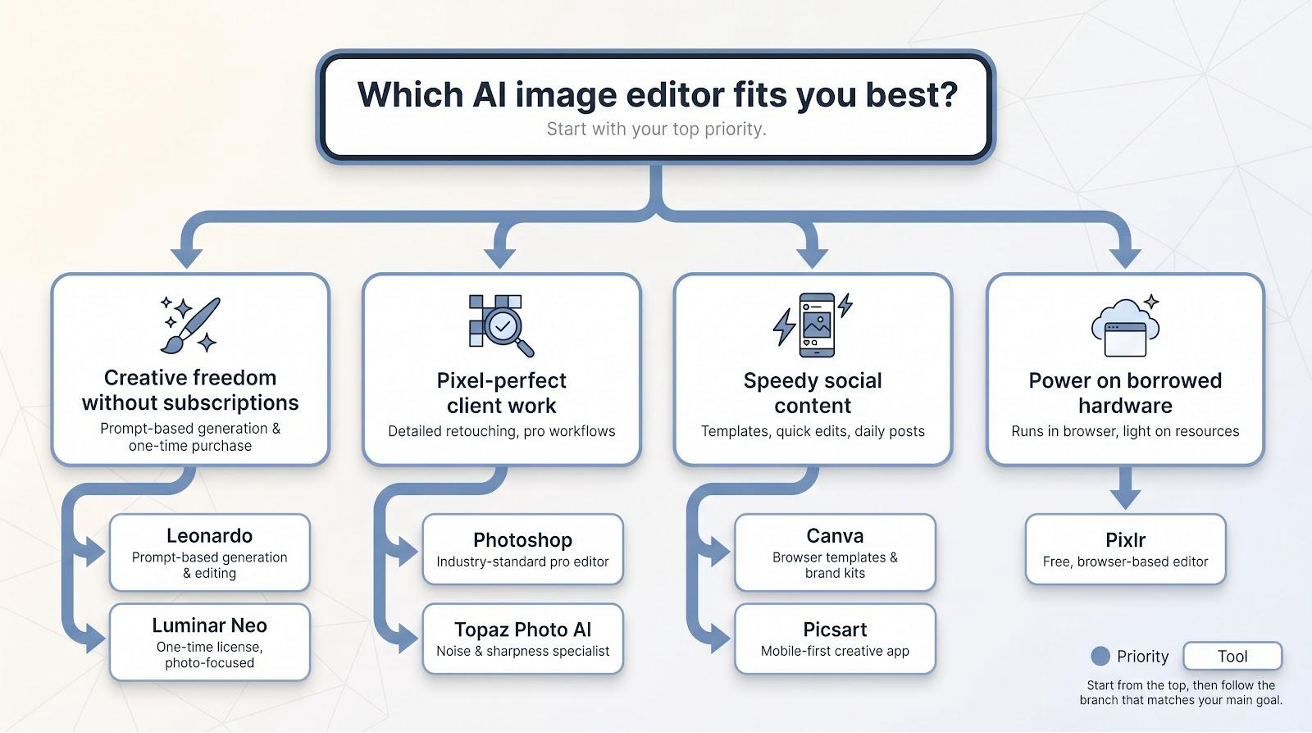
Seven solid tools can still feel like a crowd, so let’s narrow the field. Match your top priority to the list below and pick a free tier or trial today.
- Creative freedom without subscriptions
– Choose Leonardo for prompt-based generation and edits.
– Buy Luminar once and own it. - Pixel-perfect client work
– Rely on Photoshop for detailed composites.
– Pair it with Topaz Photo AI to clean noisy files. - Speedy social content
– Canva handles bulk graphics for feeds.
– Picsart brings the same energy to short-form video and mobile posts. - Power on borrowed hardware
– Pixlr opens in any browser, removes backgrounds, and exports watermark-free before IT notices.
Pick the line that fixes your current pain point, start the free tier, and you will feel the time savings on the very first project.
What’s next: three trends shaping AI editing in 2027
- Voice and chat commands become standard. Within a year you will ask an app, “brighten the background and add autumn leaves,” and watch the edit happen without touching a keyboard. Typing prompts will soon feel old-fashioned.
- On-device models mature. Apple, Qualcomm, and Samsung are packing neural engines that run diffusion models locally. Expect laptop-level edits on a phone, zero upload delays, and stronger privacy for client images.
- Authenticity tools go mainstream. Adobe Content Credentials already embeds invisible metadata, and Microsoft plus major social platforms plan similar tags. A “verify origin” button will sit next to every viral photo, curbing deepfakes and rewarding transparent creators.
In short, AI editing is sliding from novelty to invisible utility. The best tools will fade into the background and let your creative idea shine.