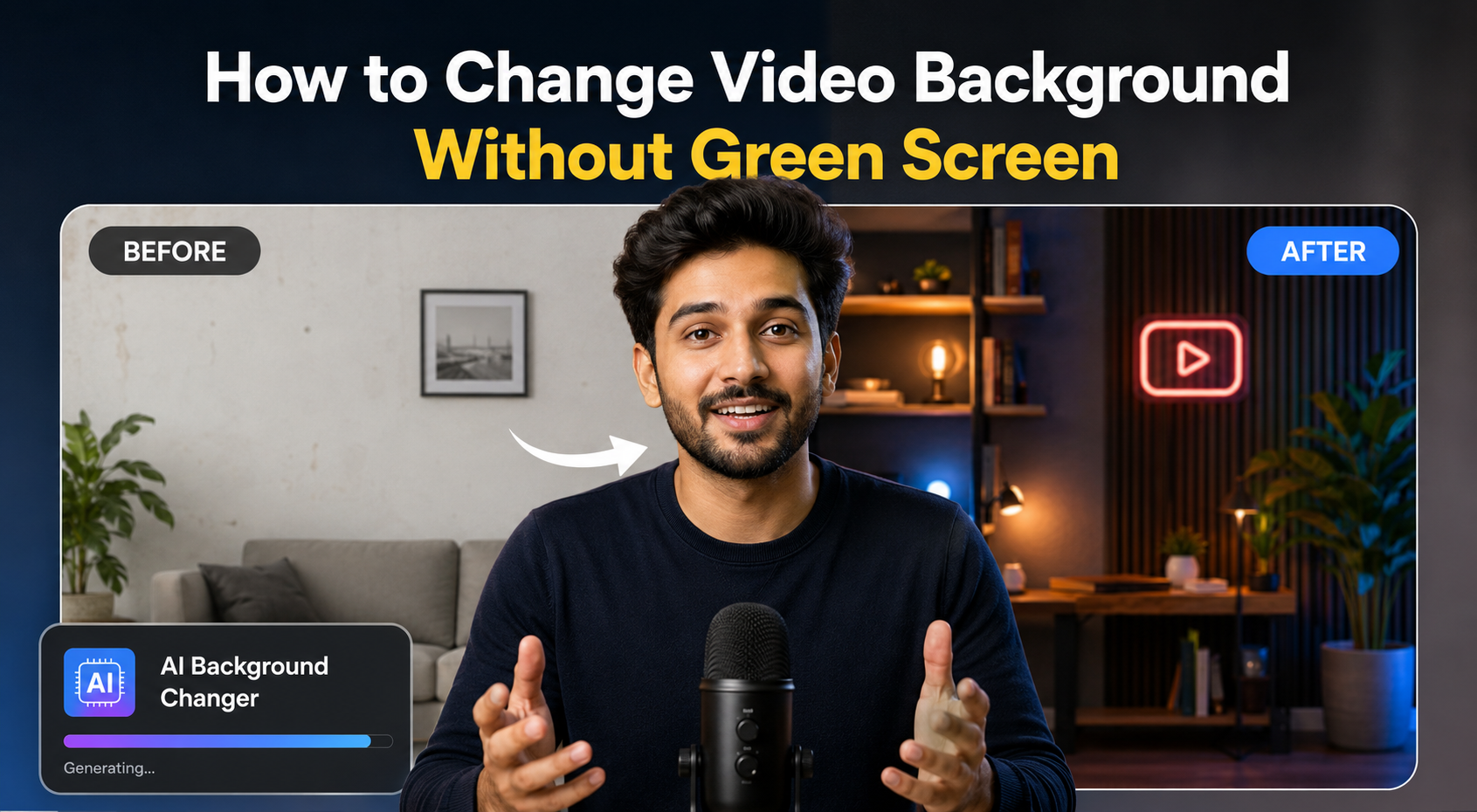
A messy room, plain wall, distracting office, or inconsistent setup can make even great video content feel less polished. For YouTubers and long-form creators, background quality matters because it affects how professional, trustworthy, and watchable your video feels.
But traditional background replacement usually requires a green screen, controlled lighting, editing software, masking, and a lot of patience.
The good news: you no longer need a green screen to change your video background.
With AI video background changers, you can upload a video, let AI detect the subject, remove or replace the original background, and create a cleaner, more cinematic, or more branded look in minutes.
In this guide, you’ll learn how to change video background without green screen, why this matters for YouTube creators, what types of backgrounds work best, and how to use OpenArt to upgrade your videos without complicated editing.
Why YouTubers Need Better Video Backgrounds
For long-form content, the viewer spends more time with you. That means your background is not just decoration. It becomes part of your channel identity.
A good background can make your video feel:
More professional
More intentional
More trustworthy
More visually engaging
More consistent across your channel
Better suited for your niche
A poor background can do the opposite. It can distract from your message, make your setup look unplanned, or reduce the perceived quality of your content.
This is especially important for:
Talking-head YouTube videos
Tutorials
Product reviews
Educational videos
Podcasts
Commentary videos
Reaction videos
Interview-style videos
Online courses
Personal brand content
If your content depends on trust, authority, or viewer retention, your background matters.
What Does It Mean to Change Video Background Without Green Screen?
Changing a video background without a green screen means replacing the original background in your video using AI instead of filming in front of a physical green backdrop.
Traditional green screen editing works by removing a specific color from the footage. AI background replacement works differently. It analyzes the video, identifies the person or subject, separates them from the background, and allows you to replace the background with something else.
That new background could be:
A clean studio
A modern office
A podcast room
A branded backdrop
A cinematic environment
A classroom or lecture-style setting
A blurred background
A custom AI-generated scene
A background image you upload yourself
This gives creators much more flexibility, especially if they film from home, travel often, or do not have a dedicated studio setup.
Why AI Is Better Than a Green Screen for Many Creators
Green screens are useful, but they come with problems.
You need enough space to set them up. You need even lighting. You need to avoid shadows. You need to prevent green reflections on skin, hair, glasses, or clothing. Then you still need editing software to key out the background and clean up the result.
For YouTubers and long-form creators, that can slow down the entire production workflow.
AI background replacement is often better because it removes many of those barriers.
1. No Physical Setup
You do not need to buy a green screen, hang fabric, adjust lights, or rearrange your room. You can record in your normal space and change the background later.
2. Faster Editing Workflow
Instead of manually masking or keying footage, AI handles subject detection and background separation automatically.
3. More Creative Flexibility
You are not limited to one background. You can test different looks for different video types, thumbnails, intros, ads, or content series.
4. Better for Creators Who Record Often
Long-form creators need a repeatable workflow. If you publish weekly or multiple times per week, faster editing matters.
5. Easier Branding
You can create a consistent visual style across your channel, even if you record in different locations.
How to Change Video Background Without Green Screen Using OpenArt
OpenArt’s AI Video Background Changer helps creators replace video backgrounds without traditional green screen editing. The workflow is designed to be simple enough for creators who do not want to spend hours in editing software.
Here is the basic process.
Step 1: Upload Your Video
Start by uploading the video you want to edit.
For YouTubers, this could be:
A talking-head recording
A tutorial intro
A product review
A podcast clip
A course lesson
A reaction segment
A vertical clip repurposed from a long-form video
For best results, use footage where the subject is clearly visible and not blending too much into the background.
You do not need a green screen. The AI analyzes the video and separates the subject from the existing environment.
Step 2: Let AI Detect the Subject
Once your video is uploaded, AI detects the main subject in the frame. In most YouTube videos, this is usually the creator speaking to the camera.
This is the key step that replaces traditional green screen keying.
Instead of removing a green color, AI understands the difference between the person and the surrounding background. This makes it possible to change the background even if the original footage was recorded in a bedroom, office, kitchen, studio corner, or shared workspace.
Step 3: Choose or Create a New Background
Next, choose the background you want behind your subject.
For long-form creators, the best background depends on the type of content you make.
For Educational YouTubers
Use clean, minimal backgrounds that do not distract from the lesson.
Good options include:
Modern classroom
Soft gradient
Clean office
Digital whiteboard-style background
Minimal studio
For Tech Reviewers
Use backgrounds that feel modern and product-focused.
Good options include:
Futuristic workspace
Sleek desk setup
Dark studio
Minimal product showcase background
Tech-style environment
For Commentary Creators
Use backgrounds that support your personal brand without stealing attention.
Good options include:
Podcast-style room
Warm studio
Branded wall
Subtle lighting background
Neutral interior
For Podcasters
Use a consistent studio-like background to make episodes feel more professional.
Good options include:
Podcast studio
Acoustic panel room
Cozy interview space
Modern recording room
Branded backdrop
For Business or Personal Brand Creators
Use backgrounds that communicate authority.
Good options include:
Professional office
Conference room
Premium studio
Soft neutral interior
Branded visual backdrop
OpenArt can help you replace the original background with a preset, uploaded image, or AI-generated background depending on your creative direction.
Step 4: Preview the Result
Before exporting, preview the video.
Look closely at:
Hair edges
Hands and fingers
Fast movements
Glasses
Microphones
Chair edges
Background alignment
Lighting match
Overall realism
For YouTube and long-form content, you want the result to feel natural. A background that looks too dramatic or unrealistic may distract viewers from your message.
The goal is not always to make the background flashy. Often, the best result is a background that looks clean, intentional, and believable.
Step 5: Export and Use in Your Editing Workflow
Once you are happy with the result, export your video and continue editing as usual.
You can use the edited clip in:
YouTube videos
Podcast episodes
Course lessons
Tutorials
Product reviews
Video ads
Shorts and Reels
Channel trailers
Intro segments
Sponsored content
For long-form creators, a useful workflow is to change the background first, then bring the video into your main editing software for cuts, captions, music, B-roll, and final polish.
Best Background Ideas for YouTubers
Choosing the right background is just as important as replacing the old one.
Here are some background ideas based on creator type.
1. Clean Studio Background
Best for:
Educators
Coaches
Business creators
Tutorial creators
Personal brand channels
Why it works:
A clean studio background keeps attention on you. It creates a polished look without distracting from the content.
2. Podcast Room Background
Best for:
Interview creators
Commentary channels
Video podcasts
Long-form discussion creators
Why it works:
A podcast-style background makes the video feel more intentional and premium. It works especially well for creators who want a recurring show format.
3. Branded Background
Best for:
Businesses
Course creators
SaaS channels
Agencies
Personal brands
Why it works:
A branded background helps viewers associate the video with your channel or company. You can include brand colors, subtle logos, or consistent visual elements.
4. Minimal Gradient Background
Best for:
Explainers
Educational videos
Thought leadership
Tutorials
Why it works:
Gradients are simple, modern, and non-distracting. They also work well when paired with on-screen text or graphics.
5. Cinematic Background
Best for:
Storytelling creators
Documentary-style videos
Entertainment channels
High-production intros
Why it works:
A cinematic background can instantly increase visual impact. Just make sure it matches your content and does not feel exaggerated.
6. Virtual Office Background
Best for:
LinkedIn creators
Consultants
Coaches
Business YouTubers
Remote professionals
Why it works:
A professional office background adds credibility without needing an actual office or studio.
Tips for Getting Better AI Background Replacement Results
AI can save a lot of editing time, but your input footage still matters. Better source footage usually creates better final results.
1. Use Good Lighting
Your face and body should be clearly visible. If the subject is too dark, AI may have a harder time separating you from the background.
Face a window, use a ring light, or set up a soft light in front of you.
2. Avoid Blending Into the Background
Try not to wear clothing that is too similar to your wall or surroundings. Contrast helps AI identify the subject more accurately.
For example, if you are filming against a dark background, avoid wearing a dark shirt.
3. Keep the Camera Stable
A stable shot usually produces cleaner background replacement. Use a tripod, desk mount, or stable surface when recording.
4. Avoid Too Much Motion
Fast hand movements, spinning chairs, or sudden movements can make edge detection more difficult.
You do not need to stay completely still, but smoother movement usually looks better.
5. Watch Out for Hair and Glasses
Hair, glasses, and transparent objects can be tricky in background replacement. Preview your final video carefully and choose a background that blends naturally with these details.
6. Match Background Lighting With Your Footage
If your face is lit warmly but your background looks cold and futuristic, the result may feel unnatural.
Choose a background that matches the lighting direction and mood of your original footage.
7. Keep the Background Relevant
The best background supports the video topic.
For example, if you are making a serious educational video, a flashy neon gaming room may feel out of place. If you are making a tech review, a modern studio may work better than a classroom.
How YouTubers Can Use AI Background Replacement in Their Content Strategy
AI video background changing is not just a visual upgrade. It can become part of your content workflow.
Create a Consistent Channel Look
A consistent background helps viewers recognize your videos. This is especially useful if you are building a long-term YouTube brand.
You can create different background templates for:
Main episodes
Sponsored segments
Tutorials
Product reviews
Podcast clips
Course-style videos
Shorts cutdowns
Repurpose One Recording Into Multiple Formats
Record once, then create several background versions.
For example:
A clean studio version for YouTube
A vertical version for Shorts
A branded version for LinkedIn
A product-focused version for ads
A podcast-style version for clips
This helps creators get more value from each recording session.
Improve Sponsored Content
If you work with sponsors, a branded background can make sponsored segments look more premium.
For example, you can create a subtle background that matches the sponsor’s category or campaign style without reshooting the video.
Create Better Intros and Hooks
The first 10 to 30 seconds of a YouTube video matter. A strong background can help your intro feel more polished and visually engaging.
You can use AI background replacement for:
Intro sections
Chapter transitions
Storytelling moments
Before and after segments
Special announcements
Upgrade Old Content Clips
You can also use AI background replacement to refresh clips from older videos.
This is useful for:
Creating Shorts from old long-form videos
Repurposing evergreen tutorials
Updating course clips
Making old recordings feel more current
Common Mistakes to Avoid
Mistake 1: Choosing a Background That Is Too Busy
A busy background can distract viewers, especially in long-form videos. The viewer should focus on your message, not the background.
Choose clean, simple, and relevant environments.
Mistake 2: Using a Background That Does Not Match Your Niche
Your background should support your content category.
A finance creator, gaming creator, educator, and tech reviewer should not all use the same background style.
Mistake 3: Ignoring Lighting Consistency
If your subject and background lighting do not match, the final result may look fake.
Choose backgrounds that match your original lighting as closely as possible.
Mistake 4: Overusing Dramatic AI Scenes
AI makes it easy to create fantasy-style or cinematic backgrounds, but not every video needs that.
For long-form YouTube content, clarity and trust are usually more important than visual shock value.
Mistake 5: Not Previewing the Full Clip
Do not only check the first frame. Watch the full clip, especially moments where you move, gesture, or turn your head.
Green Screen vs AI Background Changer
Both green screens and AI background changers can work, but they serve different creators.
Green Screen Works Best When:
You have a controlled studio setup
You understand lighting and keying
You need maximum control
You are producing professional visual effects
You have time for manual editing
AI Background Changer Works Best When:
You want faster results
You do not have a studio
You record from home
You make frequent content
You want to avoid technical editing
You need multiple background variations
You want a simple creator-friendly workflow
For most YouTubers and long-form creators, AI background replacement is the easier option because it removes the need for physical setup and complex post-production.
Example Workflows for Long-Form Creators
Workflow 1: Talking-Head YouTube Video
Record your main video normally.
Upload the footage to OpenArt.
Replace your room background with a clean studio or branded background.
Export the video.
Add cuts, captions, B-roll, and music in your editor.
Upload to YouTube.
Workflow 2: Podcast Clip
Record your podcast video.
Select key clips for YouTube or Shorts.
Use AI to replace the background with a podcast studio look.
Export vertical and horizontal versions.
Add subtitles and publish across platforms.
Workflow 3: Product Review
Record yourself reviewing the product.
Replace the background with a clean product-focused setup.
Add B-roll and product shots.
Export the final review.
Use short clips for YouTube Shorts, TikTok, and Instagram Reels.
Workflow 4: Online Course Lesson
Record a lesson at home.
Replace the background with a clean classroom, studio, or branded backdrop.
Export the polished lesson.
Add slides, screen recordings, or lower-thirds.
Upload to your course platform or YouTube channel.
Why OpenArt Is Useful for YouTubers and Long-Form Creators
OpenArt’s AI Video Background Changer is designed for creators who want high-quality video backgrounds without green screens, advanced editing, or expensive production setups.
It is especially useful if you want to:
Replace messy video backgrounds
Create studio-style videos from home
Make talking-head videos look more professional
Create branded backgrounds for your channel
Repurpose one video into multiple visual styles
Improve podcast, tutorial, review, or educational content
Save time compared with manual video editing
For YouTubers, this means you can focus more on the content itself: the script, hook, story, teaching, or review. The AI helps handle the visual polish.
How to Choose the Right Background for Your YouTube Video
Before changing your background, ask these questions:
What is the goal of the video?
If the video is educational, choose a clean and simple background.
If the video is entertaining, you can use something more expressive.
If the video is a product review, choose a background that makes the product feel premium.
What emotion should the viewer feel?
A warm background can feel personal and approachable.
A dark studio can feel premium and cinematic.
A clean office can feel professional and trustworthy.
A colorful background can feel energetic and creative.
Will the background distract from the message?
For long-form videos, the background should support attention, not compete with it.
Does it match your channel identity?
The best background is not just beautiful. It should feel like your brand.
Final Thoughts
You do not need a green screen to create professional-looking YouTube videos anymore.
With AI video background replacement, YouTubers and long-form creators can record in normal spaces and still produce videos that look clean, branded, and polished. Whether you make tutorials, podcasts, commentary videos, product reviews, or online courses, changing your background can help improve your channel’s visual quality and make your content feel more intentional.
OpenArt makes this process simple: upload your video, let AI separate the subject, choose or generate a new background, preview the result, and export your polished video.
For creators who want better-looking videos without studio costs or complex editing, AI background changing is one of the fastest ways to upgrade production quality.