
Java players have it easy with skins. You just upload a file and you’re done. in Bedrock it works a little differently — not complicated, just not something you’d figure out by accident the first time.
Here’s how it actually goes.
What’s Different About Bedrock Skins
In Java, skins are tied to your account. In Bedrock, they’re stored locally on your device. A lot depends on the platform. PC players generally have more options. Console players, not so much. You basically can’t import custom skins there — you’re stuck with what’s in the Marketplace or what Microsoft gives you. That’s just how it is.
PC and mobile are way more flexible.
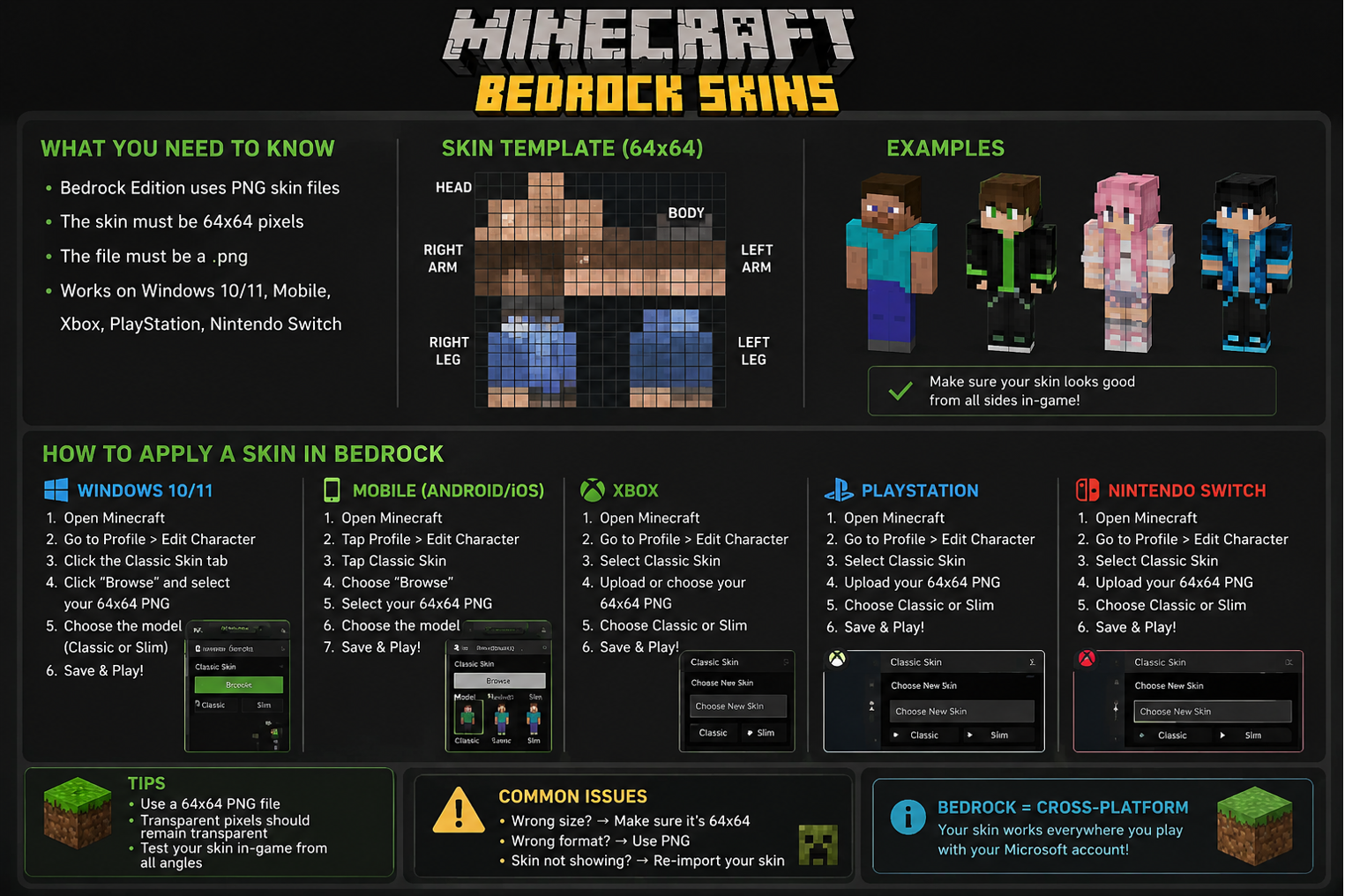
How to Import Skins to Minecraft Bedrock on PC
This is the easiest version.
1. Find or make a skin
It sounds boring, but check the image before anything else. A proper 64×64 PNG solves a lot of headaches. You can create one pretty quickly in Skindex or Nova Skin. Download it to your computer.
2. Open Minecraft Bedrock
Go to the main menu, click your character icon in the top left corner. That opens the dressing room.
3. Click “Edit Character”
After that, head over to the Classic Skins tab near the top. There should be a small import button there. Easy to miss, honestly.
4. Upload your PNG
Pick your file, choose the skin model (Steve is the wider one, Alex is slimmer), confirm. Done.
Your skin shows up immediately. No restart needed.
How to Import Skins on Mobile (Android / iOS)
Same steps as PC, just on your phone tbh.
Android — download the skin PNG to your phone. open Minecraft, find the character screen, Classic Skins tab, hit import, pick the file from your downloads. done.
iOS — same thing, but the file picker can be a bit annoying sometimes. just make sure the PNG is actually saved in your Files app and not sitting in some browser cache somewhere. once it’s in Files it’ll show up fine.
One thing to watch — some skin sites send you a ZIP file instead of a PNG. You need to unzip it first and grab the .png inside. Easy to miss.
Where to Find Good Minecraft Bedrock Skins
There are a few sites people actually use:
The Skindex — probably the biggest library. Millions of skins, free to download. Search by keyword or browse categories.
NameMC — originally for Java but lots of skins work on Bedrock too. Good for finding clean, simple designs.
Nova Skin — you can edit any skin right in the browser before downloading. good if you found something close to what you want but need to change a couple things.
Planet Minecraft — has skins alongside builds and mods. Good variety.
All free. No account needed on most of them.
chatgpt.com
Making Your Own Skin
If you want something nobody else has, making your own isn’t that hard.
Nova Skin and Skinseed (mobile app) both have visual editors — you paint directly on a 3D model. You don’t need to know anything about image editing. Just click and color.
You can get a lot more precise by editing the skin template directly. It looks confusing at first, but it’s really just the character laid flat. A little weird at the start, sure. But after you’ve done it once, the whole thing feels obvious. Same PNG, same import process.
Skins on Multiplayer Servers
When you join a server, other players see your skin. That’s the whole social side of it — your character looks like you want it to look.
But here’s the thing — on some servers, especially older ones or ones with strict settings, custom skins don’t always show up correctly for other players. It depends on how the server is configured.
If you’re running your own server and want everything to work right — skins, add-ons, the whole thing — it helps to use proper modded minecraft server hosting that’s set up for Bedrock specifically. generic hosting sometimes has issues with skin rendering and player data syncing.
A Few Things That Can Go Wrong
Seeing Steve or Alex after importing the skin? There’s a good chance the image got saved incorrectly somewhere along the way. Try exporting it again.
Skin looks fine for you but others see default — server-side issue. Not much you can do as a player.
File import button is grayed out — check if you’re on a Classic Skin slot. The Marketplace slots don’t allow custom imports.
Skin looks stretched or misaligned — you might have uploaded a 64×32 skin (the old format). Most modern editors output 64×64, but older skin downloads sometimes use the legacy size.
Quick Summary
- PC and mobile support custom skin imports, consoles don’t
- You need a 64×64 PNG file
- Import through the Classic Skins tab in the character screen
- Best sites: Skindex, NameMC, Nova Skin
- If something looks wrong — check the file format first, that’s usually the issue
Minecraft bedrock skins aren’t complicated once you’ve been through it once. After that it takes like a minute. The annoying part is really just tracking down the right file format the first time around.